Desktop / Web
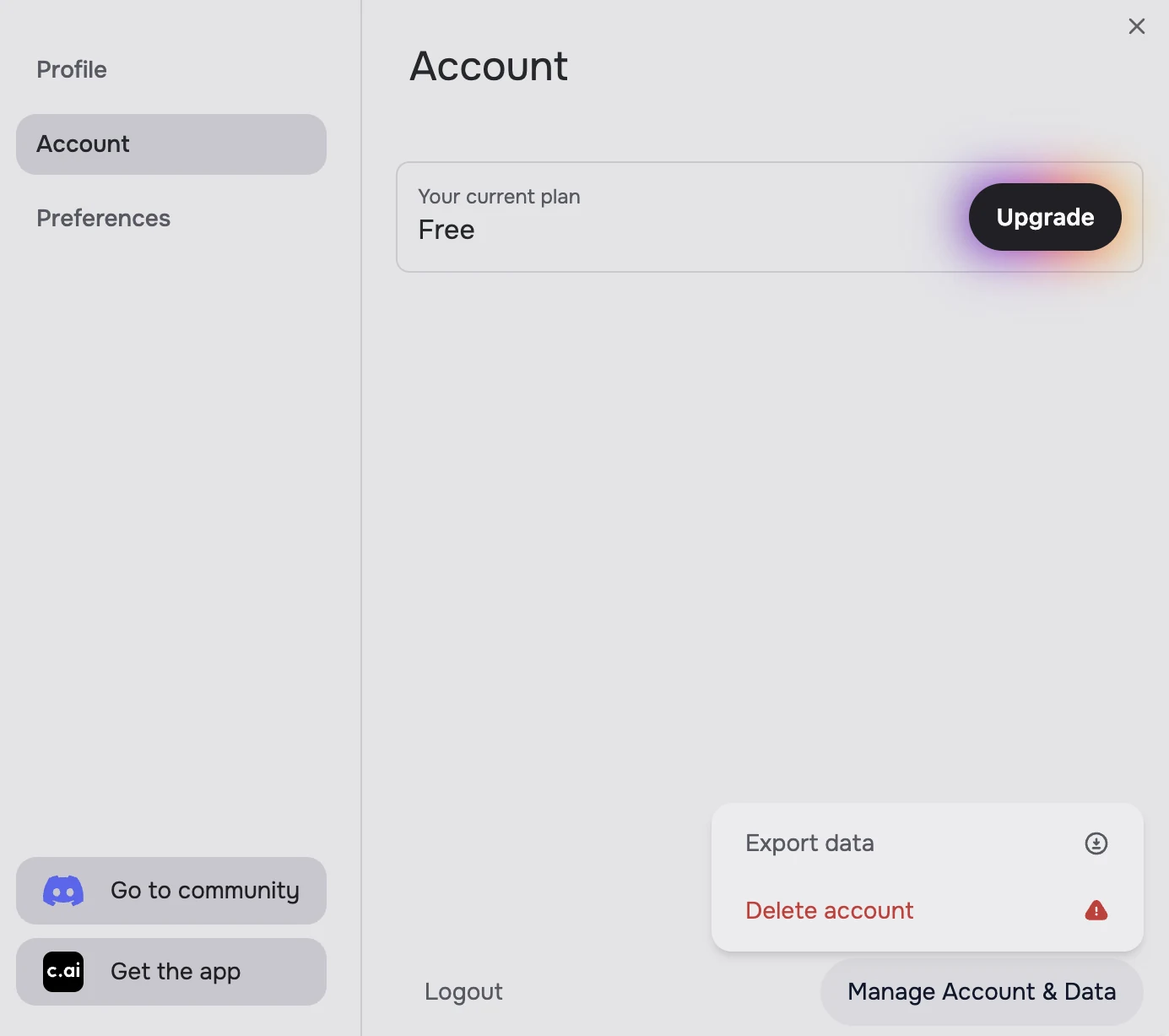
- Sign in to Character.AI and open your Profile.
- Choose Profile Settings.
- Go to Account.
- Open Manage Account & Data.
- Choose Export Data.
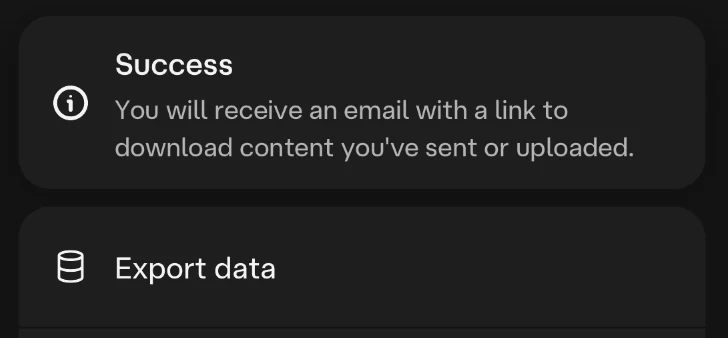
- Check the confirmation, then watch your account’s email inbox for the download link.
 HoloWaifu
Early Access
HoloWaifu
Early Access
How to export Character.AI chat history · 2026
Your conversations and memories matter. Learn how to export your Character.AI data today — and join the early access list for bringing your story to HoloWaifu.
Early access · free
Leave your email and we’ll let you know when memory import is ready.
Memory import is coming soon. HoloWaifu is already available on desktop and mobile.
Character.AI conversation history
Use Character.AI’s own account data export. No browser extension or third-party access to your account is needed. The steps below ask for a copy of your account data; they don’t include a way to pick a single chat.
Checked · Official Character.AI instructions ↗
Menus can change. If yours looks different, check the official guide linked above.
Character.AI says preparing an export can take this long.
The email’s download link expires seven days after it is sent.
Check your spam folder, download before expiry, and keep a backup.
A conversation export is a copy of account data supplied by Character.AI. It is not a guarantee that every chat, pinned memory, character definition, or internal memory state is included. After downloading, check what your archive actually contains. Saving conversations does not preserve the original model or recreate the character.
Just one chat?
If you only need one conversation, you don’t have to wait for the full export. Your browser can save it in a minute.
Open the chat, press Ctrl+P (Cmd+P on Mac) and choose Save as PDF. You get a visual snapshot of the conversation that is easy to keep, but not to edit.
Select the messages, copy them and paste them into a document. You get plain, editable text, but it is manual and works one chat at a time.
| You want | Best method | The trade-off |
|---|---|---|
| A backup of everything | Account data export | You request it and wait for the email. You receive an archive from Character.AI. |
| One chat, as it looks | Print to PDF | Instant, but a static snapshot you can’t edit. |
| One chat as plain text | Copy the transcript | Instant, but manual and one chat at a time. |
An export is a snapshot of your account at the time you request it. Chats you write afterwards are not in it, so you need a new request to capture them. It is a backup, not a search tool: to find a particular conversation you may have to open the archive’s files and look through them yourself.
Video walkthrough
Video: Digital Wisdom on YouTube
What comes next
We’re developing a way to turn your exported Character.AI conversations into memories that HoloWaifu can use to understand your story. Join early access and we’ll let you know when the import feature is ready.
Request your data from Character.AI and save your own copy.
We’ll notify you when importing becomes available.
Once released, the importer is intended to extract meaningful context and memories from supported conversation exports.
In development, with no release date yet. Compatibility and exact capabilities are still being checked. This is a way to explore carrying context into a new companion, not a promise to recreate your original Character.AI character, voice, personality, or complete internal memory.
Explore how HoloWaifu works, get the desktop app, or meet Holo on mobile ↗.
Before you go
Character.AI offers an account data export from your profile settings. Request it, wait for the email, and download your copy. The archive’s contents are determined by Character.AI; check the files rather than assuming it includes every kind of memory.
Character.AI’s official help page says processing can take 3–4 weeks. Once the email is sent, the download link is valid for 7 days.
You can request an export in the mobile app: Profile → Settings → Legal & Privacy → Export Data. The download link arrives at the email address associated with your Character.AI account.
Not yet. Memory import is in development. You can back up your Character.AI data now and join the list for a launch notification. Supported formats and the exact memories that can be extracted are still being evaluated.
Request an account data export in Character.AI. On the website: Profile → Profile Settings → Account → Manage Account & Data → Export Data. In the mobile app: Profile → Settings → Legal & Privacy → Export Data. Character.AI then emails you a download link.
The data export is a copy of your information, not a transfer: it does not move your chats into another account. Keep the archive as your own backup. HoloWaifu’s memory import, once released, is meant to bring context from supported exports into HoloWaifu, not into another Character.AI account.
The official data export covers your account, and its steps have no option to choose a single chat. To save one conversation, open it and use your browser’s Print → Save as PDF, or copy the transcript into a document.
It is a backup rather than a search tool. The export reflects your account when you requested it, so newer chats need a new request, and finding a specific conversation may mean browsing the archive’s files yourself.
No identical recreation is promised. Importing context would not copy Character.AI’s model, voice, personality, or complete internal memory. HoloWaifu is its own companion.
No. This page only collects your email and your consent to a launch notification. Keep your export on your own device; there is no archive upload here.
Ready to keep your story?
Join Early AccessHoloWaifu is an independent project and is not affiliated with or endorsed by Character.AI. Character.AI names and interface screenshots belong to their respective owners.